 iOS · App Store
Translation on your TV
Keep your eyes on your console game. Control subtitle size, colour and placement from your phone.
Test HDMI compatibility first, free
Same games. Deeper stories.
Don’t let a missing language stop the game. Camera-free translation is here.
 iPhone · Live on the App Store
 Android · Live on Google PlayAndroid TVDownload the TV appLG TVwebOS · Setup guideSamsung TVTizen · Setup guideMacmacOS 26 · Apple Silicon
 Xbox
 PlayStation
 Android TV
Console gaming. Translation on your TV. With PS5 or Xbox Remote Play.
Play your PS5 or Xbox on your phone with Remote Play. TranslaCat reads the subtitles straight from the game stream and translates them. No need to point your phone at the TV.
Live on Android · PS5 on iPhoneRequires your own PS5 or Xbox, its console account and the same Wi‑Fi network; iPhone needs iOS 18 or later and supports PS5. With TV app 0.6.8, AI translations also appear on Android TV. Not affiliated with Sony or Microsoft.
The same games, with the story in your language.
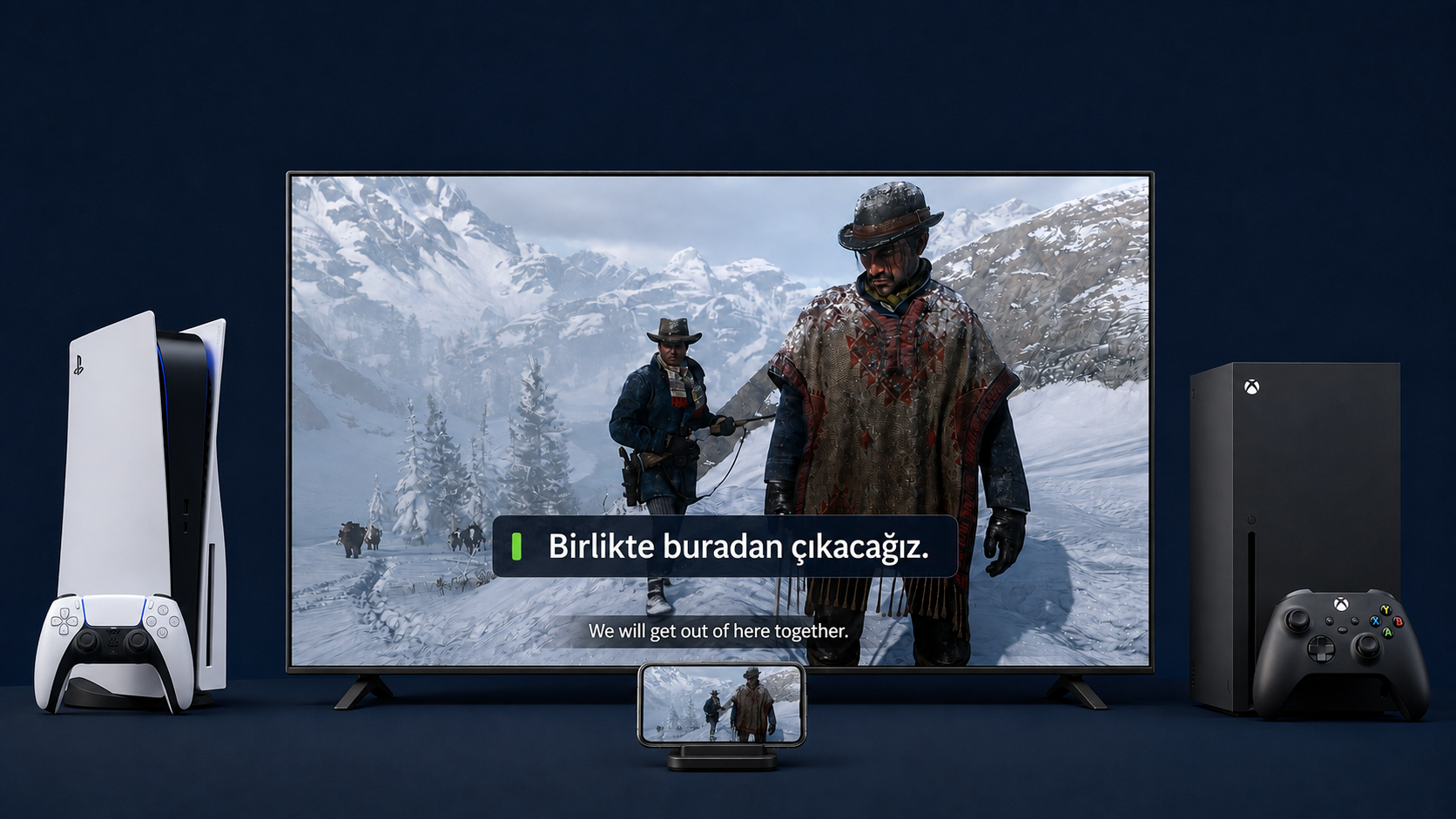
See the appsReal TV footage Red Dead Redemption 2 with Turkish subtitles on the TV. Translation on the TV needs TV Plus and a compatible Android TV.
Cinematic scenes in the film are AI-generated.
PlayStation and PS5 are trademarks of Sony Interactive Entertainment Inc. Xbox is a trademark of Microsoft Corporation. TranslaCat is not affiliated with Sony or Microsoft.
Your console runs the game. TranslaCat brings translated subtitles to your compatible TV.
See the setupAI-generated advertisement · Turkish narration
YouTube loads only when you press play.
Live subtitle translation with TranslaCat.
YouTube · @translacatapp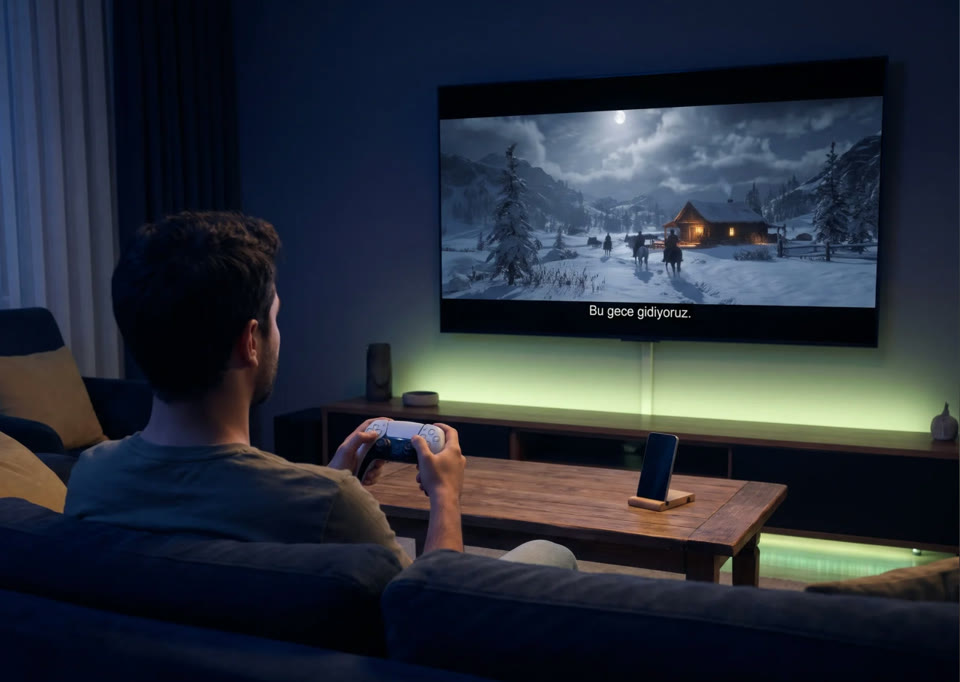
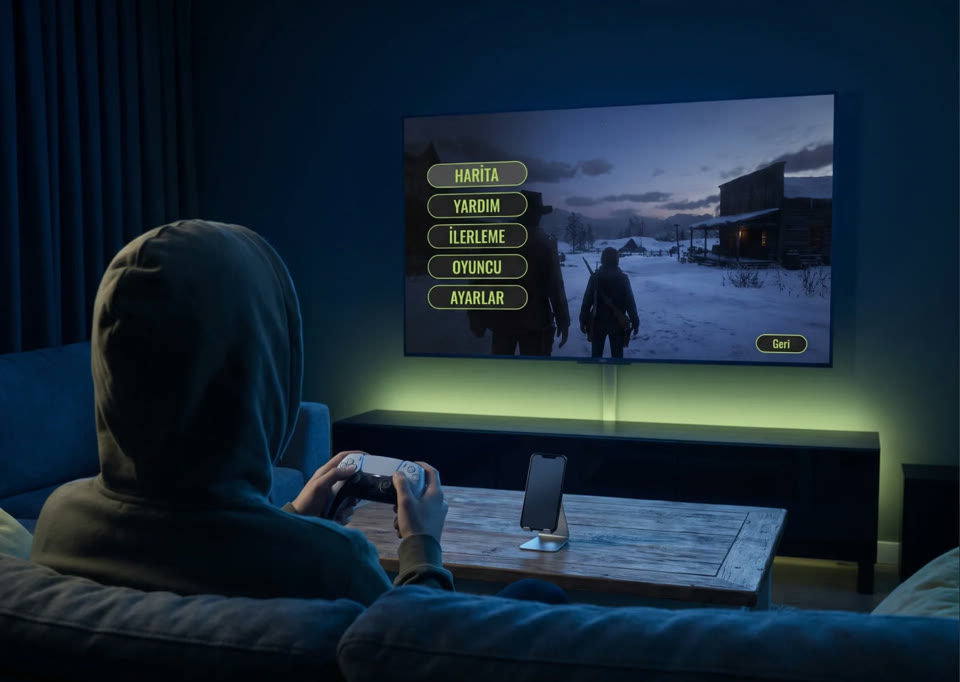
Settings → Quick settings → Translate the whole screen
The iPhone app is live on the App Store and the Android app on Google Play.
App StoreNo email? Check Spam / Junk and mark our message as “Not spam”.
Download the Android app from Google Play.
The iPhone app is live on the App Store and the Android app on Google Play. Follow changes in the release notes. View release notes
Use the App Store for iPhone and Google Play for Android.
Keep your eyes on your console game. Control subtitle size, colour and placement from your phone.
Test HDMI compatibility first, freePS5 or Xbox Remote Play brings the game picture to your phone. In free Phone mode, read translations below the game picture; no TV setup is needed.
Optional. Sign in with Apple and buy a one-time token pack. No subscription; tokens never expire.
With AI on and your consent, the selected subtitle text, languages and game context go to TranslaCat; text and languages go to DeepL. Camera images are not sent.
Size, colour and position from your phone.
Download models. Translate offline.
Translates text in the PS5 or Xbox Remote Play picture. Does not create subtitles from speech.
Translate subtitles and menus together. Coming soon.
59 target languages on Android. Available iPhone languages are shown on your device.
This website is available in 60 languages. Arabic is an Android translation target; iPhone shows the languages available on your device.
Install the app on Android TV / Google TV and pair your phone. The free HDMI test checks whether your model supports captions over your game. External Android boxes cannot overlay another HDMI input.
Setup guideMac · Windows · Developer Mode
Experimental, no warranty. Works with Android phones only for now; iPhone has no Samsung mode yet.
Setup guideMac · Windows · Developer Mode
LG TV support is in testing. Testers have seen translations over the game. Setup is a bit roundabout for now; we are working on making it easier.
Setup guideNot a TV Plus subscription or beta reservation. No app features are unlocked. Review the amount, currency and any recurring-support option at checkout.
TV Plus starts with a store subscription
Cancel anytime. Phone mode is always free.
Complete the free HDMI test first. TV Plus starts with a store subscription, which you can cancel anytime through your store.
Store pricingCurrent prices are shown in the App Store / Google Play.
Cancel anytime through your store.
Download the appStore pricingCurrent prices are shown in the App Store / Google Play.
Cancel anytime through your store.
Download the appStore pricingCurrent prices are shown in the App Store / Google Play.
Cancel anytime through your store.
Download the appPurchases in the App Store version can incur real charges. TestFlight purchases are tests with no charge. On Android, only Google Play “Test card” transactions are free. Check the final store confirmation.
Prices are shown in your local currency in the store before purchase.
The iPhone app is live on the App Store and the Android app on Google Play.
iOS v1.0.29 (111) · Live on the App StoreThe TranslaCat Android phone app is public on Google Play. Search for TranslaCat in Play Store or open the link.
Phone mode is free. Purchases and subscriptions are processed through your Google Play account; check the final amount on the confirmation sheet.
Trouble installing? Send support your phone model and the exact error message. support@translacat.info
Pick the PS Remote Play window, a display or an HDMI capture card; TranslaCat reads the subtitle, translates it into many languages with TranslaCat AI or with Apple translation, and shows it over the game. Sign in with Google in the app to use AI.
Requires macOS 26 and Apple Silicon (M1 or later). Asks for Screen Recording permission on first launch.Download for Mac (v0.2.3 · 2.5 MB)Open your platform to see changes, test availability and known limitations.
iOS 18 or later
Android 8 or later
Purchases and subscriptions are processed through your Google Play account. Check the final amount on the Google Play confirmation sheet.
Android TV / Google TV built into the television
This is a test APK. Install it only on a compatible TV and use the free HDMI compatibility test.
Include your version and device model in feedback.
In Remote Play, the controller connects to your phone, not the PS5. Hold the PS and Create buttons together until the light flashes quickly, then select “DualSense Wireless Controller” in your phone’s Bluetooth settings. Reconnecting to the PS5 ends the remote session. When finished, connect the controller to the PS5 with a USB cable and press PS.
Step by step, with screenshotsWhile a subtitle is on screen, tap “Subtitle area” at the top. Use “Auto-detect” or drag the frame over the subtitle line, then confirm. Enable game subtitles, ideally in a large size. For menus and hints, turn on “Translate full screen (including menus)”.
Step by step, with screenshotsKeep the PS5 on or in rest mode. In Settings › System › Remote Play, turn on Enable Remote Play. Your phone must be on the same Wi-Fi, with no other Remote Play session open. Try again after a few seconds.
Step by step, with screenshotsSign-in happens on Sony’s own page; your password never reaches us. Your own PlayStation account is enough. No second account is needed.
Step by step, with screenshotsAt home, the picture comes over your home network, so the home connection matters more than your internet plan. For the smoothest result, connect the PS5 to your router by cable and your phone to 5 GHz Wi-Fi.
Step by step, with screenshotsTo show translations on top of the game, the TV itself must be Android TV / Google TV; external boxes and sticks such as Mi Box cannot display subtitles over the picture from another HDMI input. LG webOS and Samsung have test versions at /lg and /samsung, installed once from a computer. Samsung currently pairs only with Android phones; iPhone support is on the way. On other TVs, such as VIDAA, phone mode works: the game stays on the TV and Turkish subtitles appear on the phone beside it.
Step by step, with screenshotsTranslaCat TV is in a Google Play closed test; the steps to join are below. Install it on Android TV / Google TV and pair your phone. Use the free HDMI test to check support for captions over the game. External Android boxes cannot overlay another HDMI input.
Step by step, with screenshotsTranslaCat TV is in a Google Play closed test. With your TV’s Google account: (1) join groups.google.com/g/translacat-tv-testers, (2) become a tester at play.google.com/apps/testing/com.translacat.tv, (3) search for TranslaCat TV in Google Play on the TV. If the app still does not appear, your TV’s Android version may be too old; contact support.
Step by step, with screenshotsBoth iPhone and Android phones work. You can pair either with Android TV / Google TV using a QR code. Samsung TV currently needs an Android phone.
Step by step, with screenshotsPaste only the single-line command from the LG page into Terminal, not the script contents. It is working when “TranslaCat TV kurulumu indiriliyor…” appears.
Step by step, with screenshotsWith subtitled games on PS5 or Xbox. Select Remote Play in TranslaCat; the game picture comes to your phone and the original subtitles are translated.
Step by step, with screenshotsYes. Open PS5 or Xbox Remote Play in TranslaCat and select Phone mode. Translations appear below the game picture. No TV app, QR pairing or subscription is needed.
Step by step, with screenshotsInitial language downloads, console sign-in, subscription checks and optional AI translation need internet. Remote Play needs an active network connection between phone and console; TV mode also needs the phone and TV on the same local network.
Step by step, with screenshotsSelect the original subtitle area in the Remote Play game picture. Enable game subtitles, use a readable text size and keep the network connection stable.
Step by step, with screenshotsComplete the free HDMI test first. TV Plus starts with a store subscription, which you can cancel anytime through your store.
Step by step, with screenshotsOn-device translation runs on your phone, not in the cloud. Download your language models ahead of time and keep playing. Optional AI translation uses the internet.
Initial model downloads and periodic subscription checks need internet. For TV mode, the phone and TV must stay on the same local network.
Camera images and caption history are not recorded. Android uses Google ML Kit; iPhone uses Apple Translation. RevenueCat and the stores process purchase information, not camera images or game subtitles.
TV delivery uses local HTTP. Use only a trusted home network.
Privacy policy Instagram@translacatapp
 X (Twitter)@TranslaCatApp
 TikTok@translacat
 YouTube@translacatapp
 DiscordComing soon
 WhatsAppComing soon