 TranslaCat
Connection guide and FAQ
Pick your problem and follow the steps in order. The pictures are real app screens.
Remote Play connection (PS5 and Xbox)
Remote Play brings the game picture from your console to your phone; TranslaCat translates the subtitles in that picture.
On the PS5, open Settings › System › Remote Play and turn on Enable Remote Play. Keep the console on or in rest mode. Keep the phone and console on the same home Wi‑Fi.
Open TranslaCat and choose PS Remote Play or Xbox Remote Play as the source. On iPhone the source menu says PS5 Remote Play; it needs iOS 18 or later.

Android For PS5, tap Sign in to Sony. You sign in on Sony’s own page; your password never reaches us. Then pick your PS5 from the list.

Android On iPhone, tap Connect once your PS5 is selected. If your PS5 is not found, use Link with PS5 code; the code is on the device-linking screen under Settings › System › Remote Play on the PS5.

iPhone For Xbox, choose Xbox Remote Play, sign in with your own account on Microsoft’s official page, then pick your console.
Once connected, the game picture appears on your phone. If it stutters, connect the console to your router by cable and the phone to 5 GHz Wi‑Fi.

iPhone
“Your PS refused the connection”
This message appears when the PS5 turns down the connection. Usually a console setting or another open session is the cause.
The PS5 must be on or in rest mode. If it is fully off, turn it on. So it can wake from rest mode, enable staying connected to the internet and turning on from the network under Settings › System › Power Saving on the PS5.
On the PS5, make sure Settings › System › Remote Play › Enable Remote Play is on.
Keep the phone on the same Wi‑Fi as the PS5. Close any other Remote Play session (another phone, a computer or the PS Remote Play app).
On Android, wait a few seconds and tap Connect again. If that fails, pick your PS5 again in Console setup.

Android On iPhone, if you see PS5 connection did not complete, tap Try again or use Link with PS5 code.

iPhone
The controller (DualSense) disconnects
In Remote Play the controller connects to your phone, not the PS5. If it stays connected to the PS5, it cannot control the session on your phone.
The app reminds you when the session starts. Follow the steps in the notice to pair the controller with your phone.

iPhone Hold the controller’s PS and Create buttons together until the light flashes quickly.
Open your phone’s Bluetooth settings and select DualSense Wireless Controller.
Don’t reconnect the controller to the PS5 while playing: that ends the remote session. When you finish, connect the controller to the PS5 with a USB cable and press PS.
Without a controller you can play with the on-screen buttons. On Android, the Controller button shows or hides them.
I’m connected but subtitles aren’t translated
TranslaCat translates the subtitle text on screen, not the spoken audio. First make sure the text can be read.
Turn on subtitles in the game’s settings; if available, choose a large subtitle size and a background.
In ⚙ Settings › Language, set Game language to the subtitle language and Translation language to the language you want to read.
While a subtitle is on screen, tap Subtitle area. Place the green frame over the subtitle line only and confirm. On iPhone you can try Find automatically, then tap Confirm area.

Android Once the area is confirmed, the button says Confirmed and the status line shows that translation is on.

Android To translate menus and hints too, turn on Translate the whole screen (menus too) in ⚙ Settings. On iPhone this option is in the Subtitle area menu.

Android If the translation text is too small, make it bigger in ⚙ Settings › Subtitles › Size. In Phone mode the translation appears below the game picture.

Android
Which TVs work?
To see translations over the game, TranslaCat TV must run on the TV itself. If your TV doesn’t qualify, free Phone mode always works.
The TV itself must run Android TV / Google TV. Examples: Sony BRAVIA, Xiaomi, TCL and Philips, Grundig, Arçelik and Toshiba models with Android TV. You can check under Settings › About on the TV.

iPhone External boxes and sticks such as Mi Box cannot draw text over the console picture from another HDMI input. Don’t install TranslaCat TV on them.
After pairing, run the free HDMI test. If you see the test text over the game, your TV works.

TV LG webOS and Samsung have test versions installed once from a computer; see the LG and Samsung sections below. On other TVs and monitors, read the translation in Phone mode.
The TV app isn’t in Google Play
TranslaCat TV is not yet public in Google Play on TVs. You can install it from our website with the Downloader app.
On the TV, open Google Play, search for the Downloader app (by AFTVnews) and install it.
Open Downloader, type translacat.info/android-tv in the address box and press Go.
In the download section of the page, choose Download TV APK, then Download to transfer to TV. If the TV asks, allow Downloader to install apps and confirm the installation.
This file is for the TV only; don’t install it on your phone. TranslaCat on your phone shows the same steps.

iPhone Open TranslaCat TV and allow it to display over other apps. When a QR code appears, go on to pairing.

TV To join the Google Play closed test instead, use your TV’s Google account: join groups.google.com/g/translacat-tv-testers, become a tester at play.google.com/apps/testing/com.translacat.tv, then search for TranslaCat TV in Google Play on the TV.
Pairing with the TV by QR
The phone and TV pair once with a QR code. The camera opens only to read that QR code.
Keep the phone and TV on the same home Wi‑Fi network.
Open TranslaCat TV on the TV; a QR code appears with a code below it.
Open TranslaCat on your phone. On iPhone, tap Scan QR in the TV tab. On Android, choose ⚙ Settings › Connect to TV › Android TV / Google TV › Scan the QR code.

iPhone If the QR code won’t scan, type the IP address and the 8-digit code shown on the TV into the fields on your phone and tap Connect.
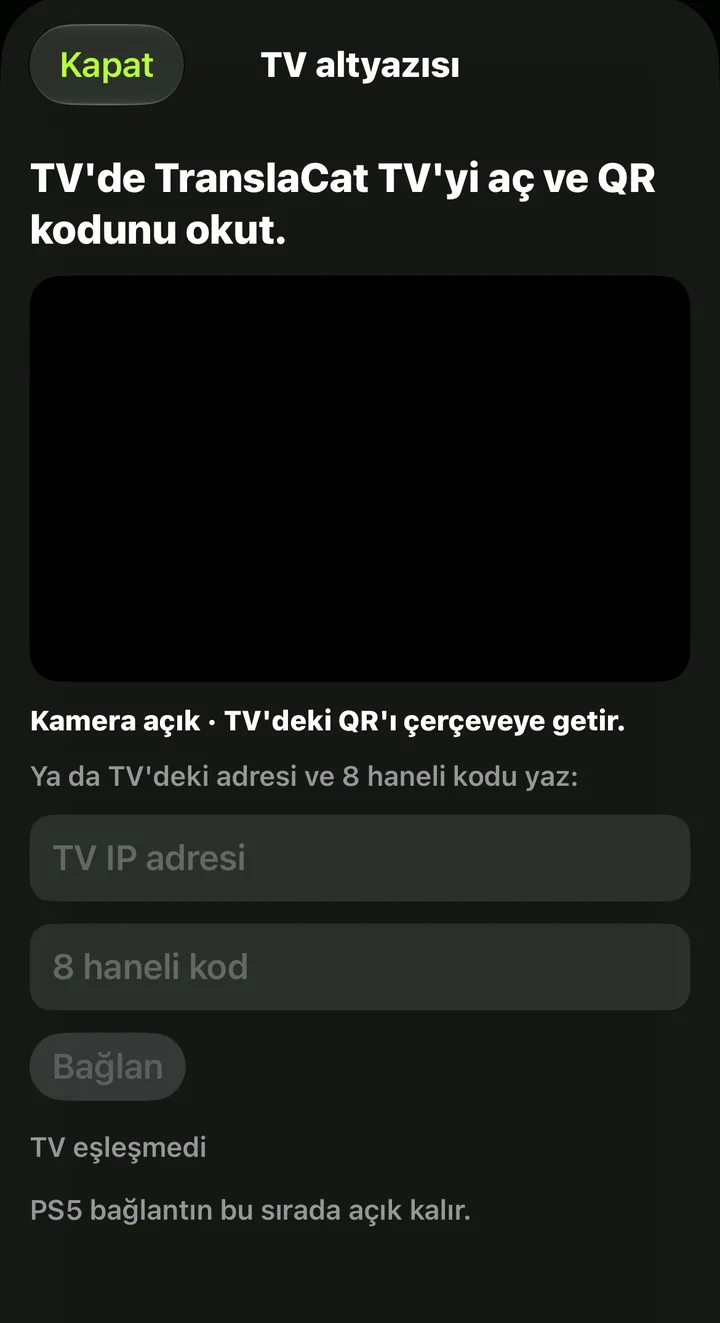
iPhone Once paired, confirm on the phone when you see the test text over the game on the TV.
If it still won’t pair, make sure only the current TranslaCat TV is open on the TV, close and reopen both apps, and try again.
LG TV (webOS) setup
The LG app is not in the LG store. The test version is installed once from a computer through LG’s Developer Mode.
On the TV, open the LG Content Store, install the Developer Mode app and sign in with a free LG Developer account.
Turn on Dev Mode Status; the TV restarts. Open the app again and turn on Key Server. A 6-character passphrase appears.
Connect the computer to the same Wi‑Fi as the TV. Paste the single line below into Terminal on Mac or PowerShell on Windows and press Enter.
Maccurl -fsSL https://translacat.info/lg/kur.sh | shWindowsirm https://translacat.info/lg/kur.ps1 | iexWhen asked, type the 6-character passphrase from the TV. When it says Bitti (done), TranslaCat TV opens. If Mac shows “event not found”, paste only this single line, not the script contents.
Pair your phone by QR (see the QR section above). Developer Mode must be extended about every 1000 hours: EXTEND in the Developer Mode app.
Samsung TV (experimental)
The Samsung TV app is in testing and not in the store. For now it pairs only with Android phones.
Setup is done with a helper on your computer through the TV’s Developer Mode. Follow the steps on the Samsung page.
Send us the TV ID (DUID) shown by the helper as described on the Samsung page; running the helper again with the package made for that TV installs TranslaCat TV.
On the Android phone: TranslaCat › ⚙ Settings › Connect to TV › Samsung Smart TV › Scan the QR code. In older versions this is under ⚙ Settings › Samsung TV.

Android Translations appear only over the HDMI input picture, not over the TV’s own apps (Netflix, Gaming Hub).
AI translation, tokens and sign-in
AI translation is optional and gives more natural translations. On-device translation stays free.
Open ⚙ Settings › Account and AI access. On iPhone choose Sign in with Apple; on Android Sign in with Google. Your token balance is tied to that account.
Choose a one-time token pack with Add tokens. 1 token = 1 character. Translations served from the cache use no tokens. No subscription is needed; tokens never expire.
Switch the translation method to AI: on Android Translation › AI, on iPhone AI translation in the Translation menu.

Android On iPhone the same menu also opens while you play; you can switch back to Apple translation at any time.

iPhone The first time, a consent screen shows what text is shared. Only the subtitle text in the area you chose is sent; the console picture stays on your phone.

iPhone Your balance appears on the home screen as AI · … tokens. If tokens you bought don’t show, make sure you are signed in with the same account and refresh the balance in Account and AI access.
Android